Manual
Menu bar
The menu bar has two dropdowns:
- Menu (Intended contents: any generic controls for the extension.)
- Reset state
- Resets the looping data. Does not clear any saved data or similar, just resets the currently set contents of the sections table.
- Upgrade data version
- If the schema of the saved data is changed at some point, this will allow upgrading that schema.
- Reset state
- Preferences (Intended contents: preferences like decreased animations)
- Confirm Actions
- Allows toggling of confirms on given actions, currently saving and loading of state. Other high-consequence actions that are expected to be used less often will have confirms regardless.
- Confirm Actions
Metadata
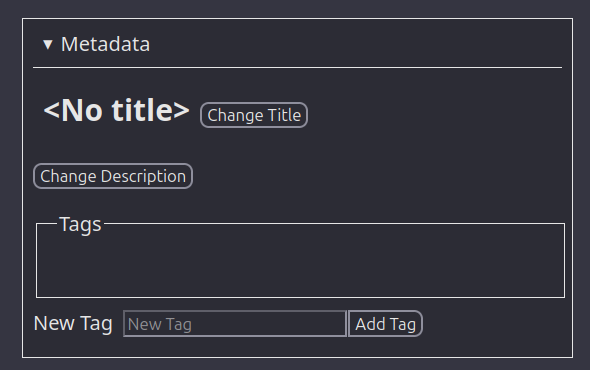
The metadata section is used for setting the metadata (title, description, tags) of loop data. For setting new tags, if any tags are set in other loop data of the current domain, those tags can be brought up as suggestions. This happens when something is written in the input, in which case suggestions are brought up based on the written content. Otherwise the suggestions can be brought up with a double click or with CTRL + DOWN ARROW. This may be browser-dependent.
Metadata is not saved automatically: in order to save, press save state in the controls.
Sections Table
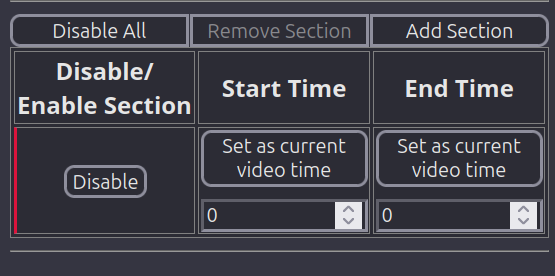
The sections table allows creating the time sections for the loop. A section is a delimited part with a start and end time in the video. Looping happens only within the sections: if the current time is within one of the sections, playing of the video continues normally. If the time is between sections, it jumps to the start of the next section, naturally with loopback to the first section. There are three columns in the sections table:
- Disable/Enable
- Allows disabling/enabling a given section. When a section is disabled, that part will not be considered in the looping. In other words, disabling a section removes that section from the consideration of the looping as if that section was not in the sections table at all.
- Start Time
- Allows setting the start time of the video. Pressing 'Set as current video time' will set this time as whatever time the currently selected video is on; see the section on controls for more about selecting the current video. The numeric selection input below the button shows the currently set time in seconds and can alternatively be used to set the time. The intended main mechanism for setting the time is, however, the button, and the input is mostly intended for finetuning.
- End Time
- Sets the end time of the section, otherwise identical in functionality to the Start Time column.
Above the sections table, there are three controls:
- Disable/Enable All
- Allows disabling/enabling all sections at once.
- Remove Section
- Removes the last (lower-most) section if there is more than one section.
- Add Section
- Adds another section.
The sections are expected to be in order, i.e. Section 1 should not have a start time that is after any part of Section 2. In general, if sections are in the wrong order or overlap, the resulting looping behaviour is undefined.
Sections are not saved automatically: in order to save, press save state in the controls.
Controls
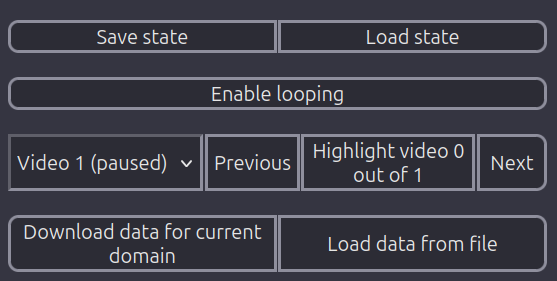
The controls section contains numerous controls for the extension:
- Save State
- Saves the current state for the current URL, which includes the metadata and the time sections.
- Load State
- Loads the state for the current URL if such state is available.
- Enable Looping
- Enables the looping behaviour defined in the sections table for the currently selected video (see the next items in this list).
- Video select
- Allows selecting videos from a dropdown list, shows the current playing state (playing/paused) of each video on the page. This makes it easier to find the video to target.
- Previous
- Selects the previous video element on the page.
- Highlight Video
- Highlights the selected video. Currently scrolls to the video and causes a zoom effect on the video for a few seconds. Useful for visually ensuring that the correct video is selected.
- Next
- Selects the next video element on the page.
- Download data for current domain
- Downloads a file that contains the saved data for the current domain.
- Load data from file
- Opens a dialog for selecting a file from the file system. Should contain JSON data such as downloaded through the above control.
Domain Data
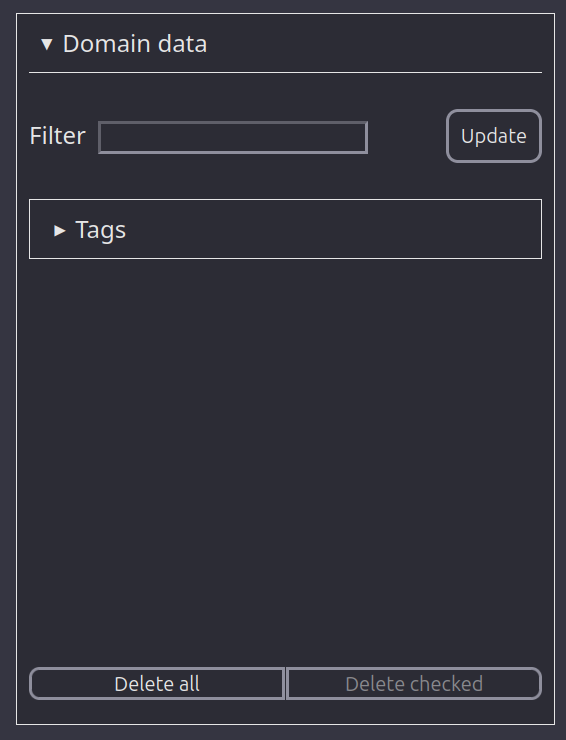
The domain data section allows looking through the loop data of the current domain. It shows all the URLs for which loop data has been saved under the current domain. Items have titles, descriptions, and tags that can be set in the metadata section. The items can be filtered based on these details: the Filter input allows filtering based on textual content of the title and description, while the Tags box can be used to filter for tags. The Update button can be used to update the listing if it is not up to date.
Here, saved data for this domain can also be deleted: Delete All deletes all saved data, while Delete chosen deletes any items from the list that are selected (the items have a selection box next to them).
Console
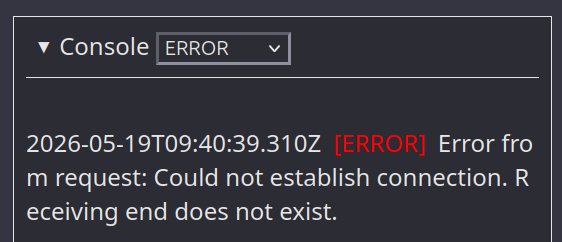
A simple console helpful for debugging any issues that the extension may have. Shows logs created by the extension sidepanel, and allows selecting a logging level.